

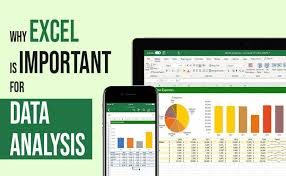
It is just a grid. Rows. Columns. Cells.
But that grid in Microsoft Excel has become the quiet engine of data analysis worldwide. No coding required. No expensive licenses. Just a spreadsheet and a willingness to learn.
Here is how Excel handles data analysis from absolute zero.
The Starting Point: Raw Data
Every analysis begins with raw data. A list of sales. A log of website visits. A spreadsheet of inventory.
Excel accepts data in almost any format: CSV, text files, databases, or direct typing. Once opened, the user sees a table. Thousands of rows. Dozens of columns.
The first task is always the same: look at the data. Excel provides sorting and filtering to do this instantly. Click the filter button. Dropdown arrows appear on every column. Sort A to Z. Filter out blanks. Hide irrelevant columns.
No formulas. No functions. Just observation.
The First Real Tool: Pivot Tables
Pivot Tables are Excel’s most powerful feature for beginners.
A Pivot Table summarizes thousands of rows in seconds. Drag “Product Category” into Rows. Drag “Total Sales” into Values. Excel instantly shows total sales by category.
Drag “Month” into Columns. The table rearranges itself. Now you see sales by category and month simultaneously.
No writing. No programming. Just dragging and dropping.
Pivot Tables also calculate averages, counts, percentages, and running totals. The user clicks a dropdown and selects which calculation they want. Excel does the rest.
Finding Answers: Lookup Functions
Raw data is rarely stored in one perfect table. Often, information is split across multiple sheets.
This is where `XLOOKUP` enters.
`XLOOKUP` searches one column for a value and returns a matching value from another column. Example: A product ID is in Sheet 1. The product name is in Sheet 2. `XLOOKUP` finds the ID and brings back the name.
The formula looks intimidating at first: `=XLOOKUP(lookup_value, lookup_array, return_array)`. But in practice, the user simply clicks the cell they want to search, highlights the column to search, and highlights the column to return.
One correct result. Then drag down. Done.
Logic and Labels: IF Statements
Raw numbers are cold. Humans need labels.
`IF` statements add logic. `=IF(sales>10000, “High”, “Low”)` scans every sales number. Above 10,000? Label it “High.” Below? Label it “Low.”
These labels can then be used in Pivot Tables. Suddenly, the analysis shows not just numbers, but categories: which products are high performers, which are low, and how many of each exist.
The Unavoidable Step: Cleaning Data
Raw data is always dirty. Misspellings. Blank cells. Duplicates. Extra spaces. Numbers stored as text.
Excel provides native tools to clean data:
– `TRIM()` removes extra spaces
– `CLEAN()` removes non-printable characters
– `Remove Duplicates` deletes identical rows with one click
– `Find and Replace` fixes repeated typos across thousands of rows
Conditional Formatting highlights blank cells in red. The user sees every problem instantly. Fix one. Copy to all.
Experienced users say cleaning takes 80 percent of analysis time. Excel makes that 80 percent possible without programming.
Seeing Patterns: Charts and Conditional Formatting
Raw numbers hide patterns. Charts reveal them.
– Bar charts compare categories
– Line charts show trends over time
– Histograms display distribution
All are available in two clicks. Select the data. Press `Alt + F1`. Excel creates a chart on the current sheet.
For faster visual analysis, Conditional Formatting turns a column into a heat map. The highest numbers turn dark green. Lowest turns dark red. The user sees the pattern before reading a single value.
The Limit
Excel handles roughly one million rows. Beyond that, it slows down or crashes. For larger datasets, databases, or specialized software is required.
For everything else, the vast majority of real-world analysis, Excel works. From scratch. No code. No degree. Just a grid and time.